

Before you start
This guide documents the steps for an existing User with Admin Rights to set up a new User.
A standard agreement with GetVerified for VerifyBiz comes with access to the web-based portal. Each organisation is allocated two Users, one with Admin Rights and one without.
Unsure if you have Admin Rights?
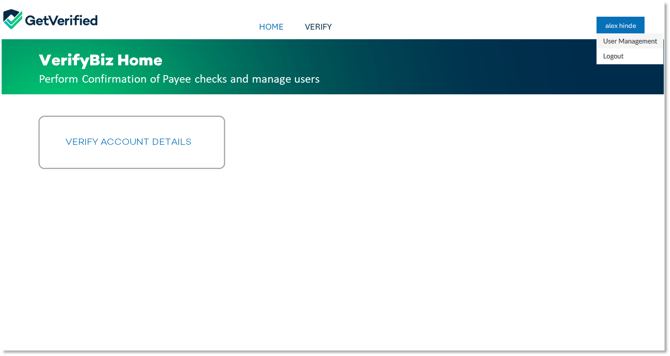
To know if you have Admin Rights, after set up log-in to the VerifyBiz Portal and click on your name in the top right of the screen. If you are set up as an Admin you will see the menu options "User Management" and "Logout". If you are a User, your only menu option will be "Logout".
If you should be an Admin and have been set up incorrectly, please get in touch with GetVerified. Noting that:
- Each organisation is automatically allocated one Admin User, and
- An Admin User can't set up another Admin User.
If you need additional Admin Users, please contact GetVerified.
Step by step instructions to set up a User
1. Click on the link provided by obconnect when set up as an Admin.
All Users will use the same link to access VerifyBiz. If you haven't already, save it to your favourites so it’s easy to find later.
2. Use Two Factor Authentication to login to the system.
3. On the landing page, click on your name at the top right corner of the screen.
4. Select User Management
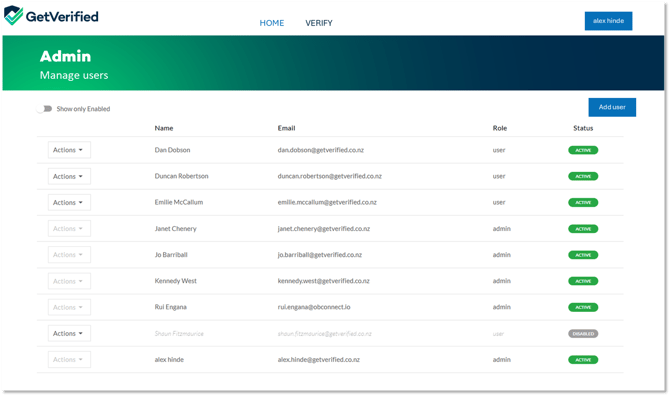
5. To add a User click “Add User”
6. Enter the information about the new user including Name, Email and Select “User” in the Role drop down menu.
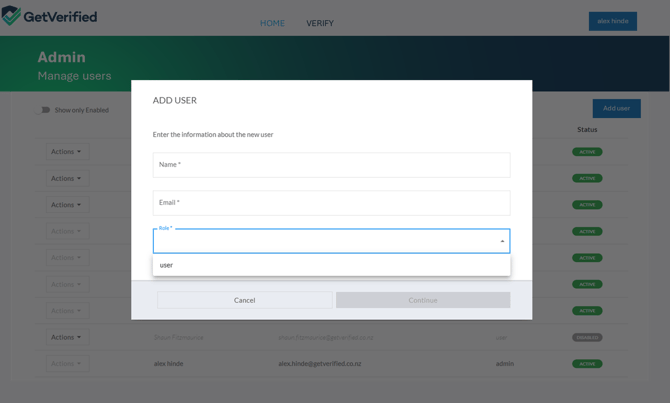
7. Select 'Continue', and an email will automatically be sent to the new user.
8. The new User will need to follow the set-up process with two factor authentication to log in to VerifyBiz.
Step by step instructions for new Users to set themseves up are here.
If a User doesn't recieve an email for set-up, please let us know at support@getverified.co.nz
More instructional guides
To instruct Users on what to expect and do next - see the: User-Guide: Instructions for logging in for the first time
To log in as an Admin for the first time - see the: Admin Registration Guide