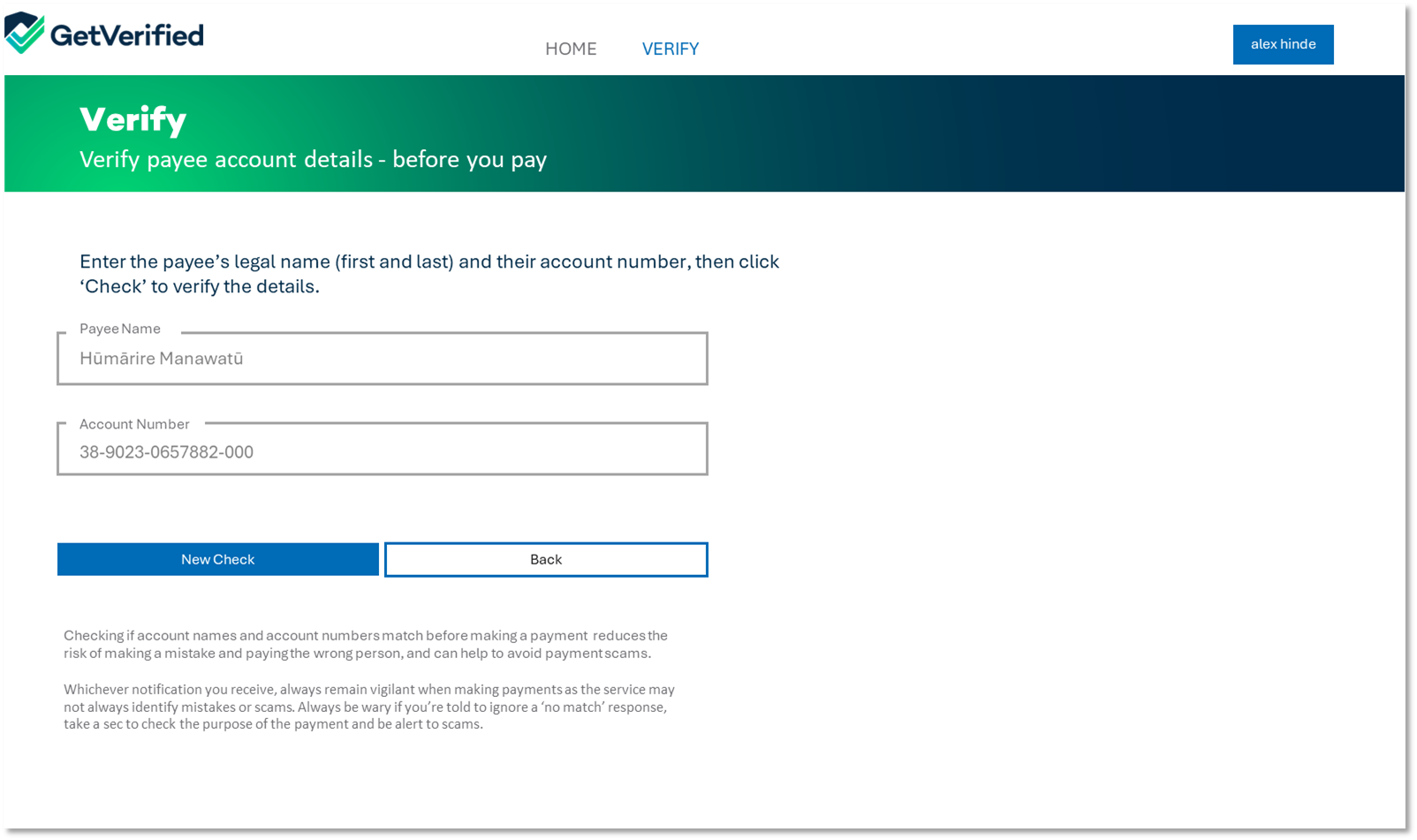

Before you start
Admins and Users
A standard agreement with GetVerified for VerifyBiz comes with access to the web-based portal. Each organisation is allocated the number of Users confirmed in their agreement - one of the Users can be nominated to hold Admin Rights. The Admin role is able to add and manage Users on behalf of the organisation.
This guide documents the steps to set-up the User role.
GetVerified and obconnect
GetVerified's VerifyBiz Confirmation of Payee service is powered by our vendor, obconnect. When setting up an administrator or a user, you can expect communications and URL addresses which include the name, obconnect.

Two Factor Authentication
To sign in and use VerifyBiz, you will need access to an authenticator application. There are many two factor Authentication (2FA) providers on the market which are free to use.
- 2FA for desktop: If you do not have access to a smart phone, there are desktop options (for example: https://bitwarden.com/download/.)
- 2FA for mobile: If you have a smart phone, we typically suggest downloading MS Authenticator from your App Store
Step by Step guide
1. Your organisation's Admin User will have sent your Name and Email address to GetVerified to set you up as a portal User.
2. You will receive a 'password change request' email that looks like this:

3. Click 'CONFIRM' to open a web browser and go to a change password screen.
If this doesn't appear then hit the "Forgot my password" button for the screen below to appear.
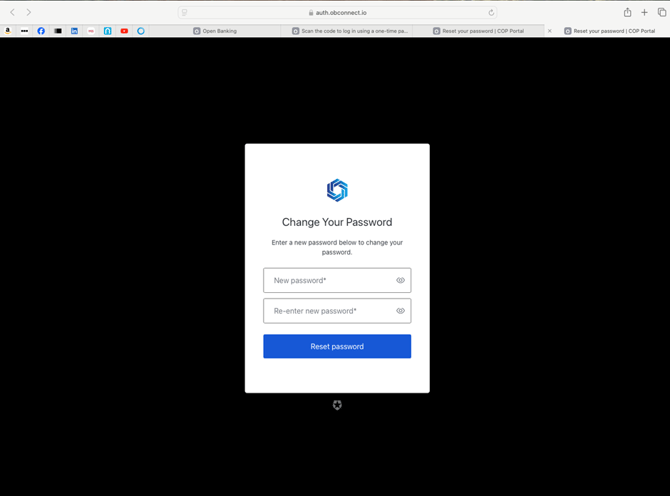
4. Reset/set-up a new password
We encourage you to:
- Use a password with over 12 characters
- Use regular and special characters
- Never reuse a password
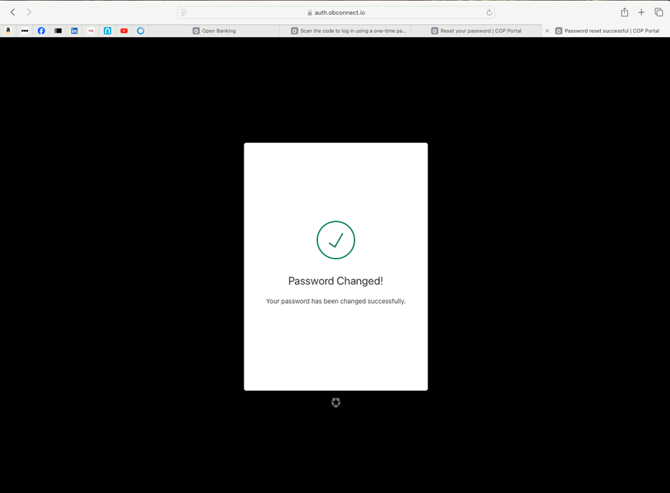
When complete, the you should see the screen below.
5. obconnect will send you a VerifyBiz URL link that is unique to your organisation.
Save the link to your favourites so it’s easy to find later.
Click on the link to begin the authentication and log in process.
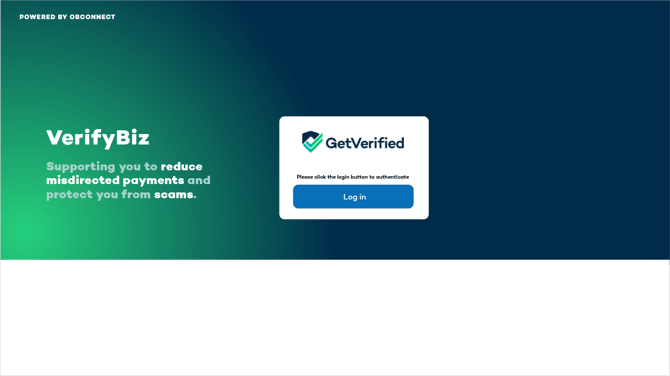
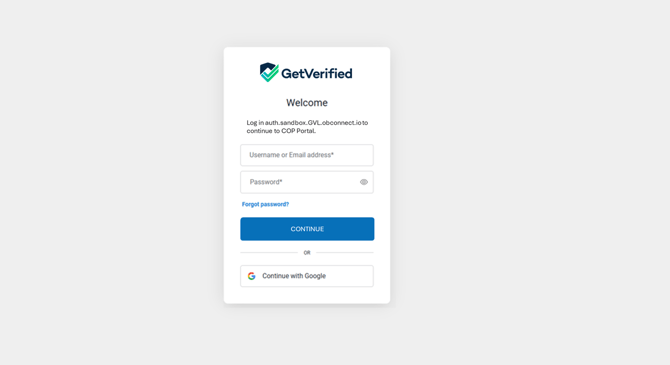
4. Once you have signed in, you will be invited to set up your 2FA authentication
- If you are using MS Authenticator, click on the “+” (Plus sign) on the top left
- Select QR code and scan the QR code provided to install the obconnect instance into your MS authenticator profile.
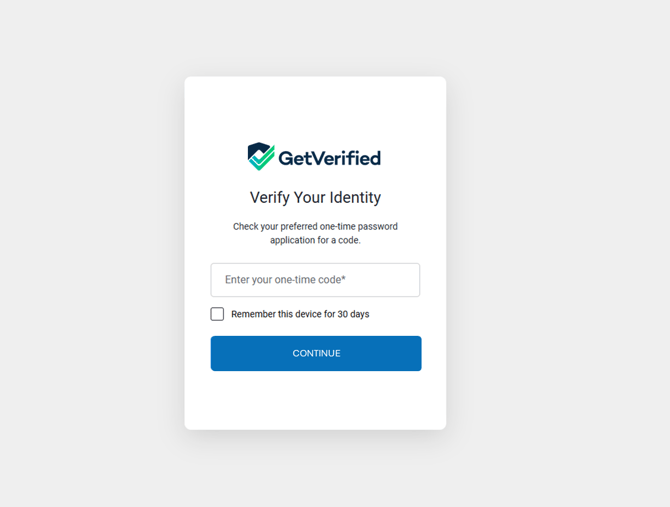
5. The Authenticator will provide a one-time password code. Put this code in the box provided below the QR code and click 'Continue'.
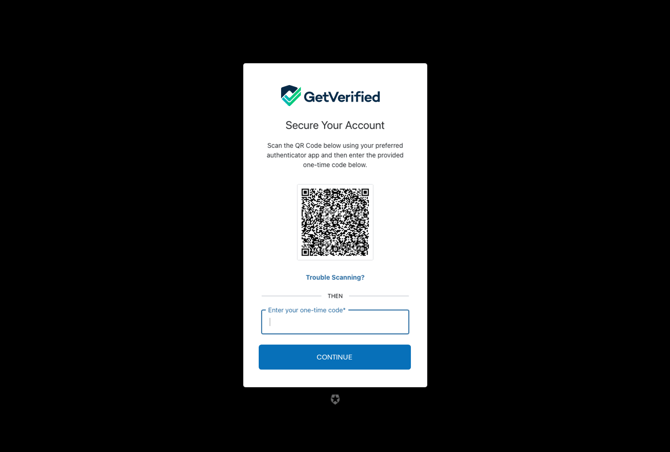
The screen could also look like this (below): Enter the one-time password code from the authenticator app and press 'Continue'.
4. When you log-in, the service will take you to the VerifyBiz Landing page
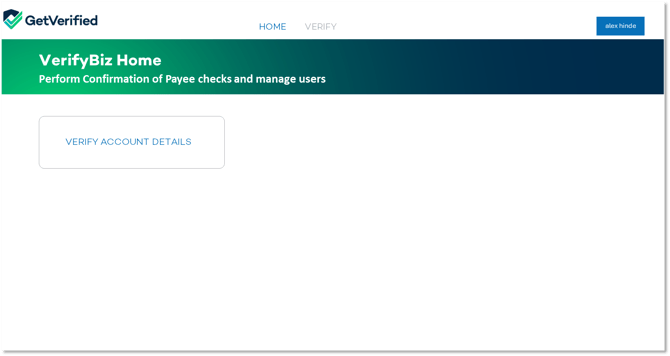
5. Click on "Verify Account Details" and follow the page instructions to start using the service.